Xenia - Wave Editor
March 08, 2025
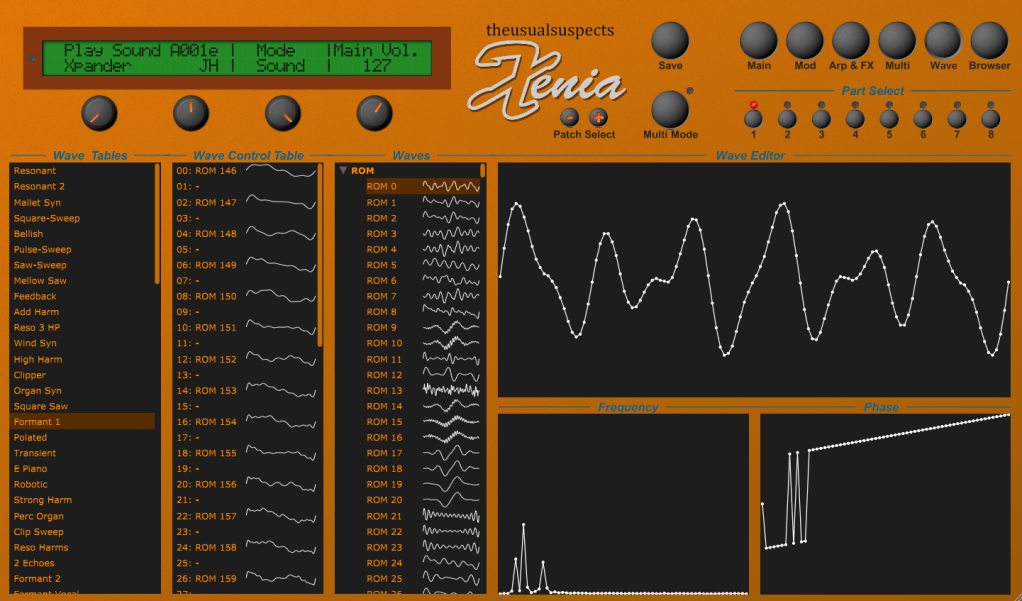
In version 1.4.4 of Xenia, a new page has been added to the UI, the Wave Editor.
Introduction
Xenia uses wave table synthesis. Each oscillator uses a table of waves as its source to generate sound.
Wave
A Wave is a single cycle wave form. In Xenia, a wave is 128 samples long. The Os used in Xenia comes with hundreds of prebuilt waves that are built into the OS, they are called ROM Waves.
Furthermore, there is space for User Waves. User Waves are initially a square wave form but they can be edited.
Editing these Waves is restricted to a length of 64. The reason for this is that you can not edit a single cycle waveform but only a half cycle waveform. The second half is automatically generated by reversing and inverting the second half. In Xenia, the wave editor does this automatically for you. If you draw a wave form, you’ll notice that the other half of the waveform is automatically updated too.
Control Tables
An Oscillator in Xenia doesn’t use a single Wave directly but uses a Control Table instead. A Control Table is a set of 64 Waves. By adjusting the start wave of an oscillator, you can alter the Wave that is played back. Even better, you can adjust the start wave by modulations to create rich evolving sounds.
A Control Table doesn’t need to have a Wave defined for every of the 64 slots. If you have gaps inbetween, the OS generates interpolations of the adjacent waves, which allows you to have smooth transitions from one Wave to the other.
As with Waves, the Xenia OS comes with plenty of prebuilt Control Tables that you can use straightaway. However, there are 32 slots to define your own Control Tables.
Initial Startup
If you open the Wave Editor for the first time, the factory content for all Waves and Control Tables is populated by requesting this data from the device. This process is only done once and should finish in less than a minute. The factory content as well as the user content is stored on disk at …/The Usual Suspects/Xenia/wavetables.
If you want to restore the factory contents at any time, delete this folder and reloading the plugin. Note that this will erase all your User Waves and User Control Tables that are not part of any preset.
UI Overview
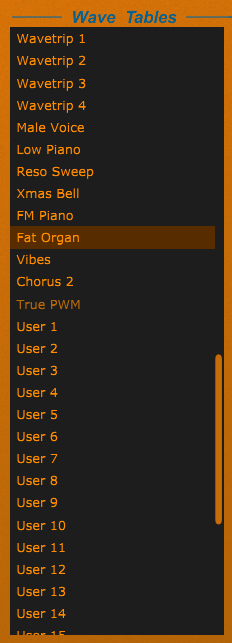
The leftmost column lists all Control Tables that are available. The selected Control Table is the one being used by the current patch.
The selection updates if you switch the active part or select another program. If you select another Control Table here, the current patch will be updated to use it.
Control Tables in a darker color are generated by the OS and cannot be viewed or edited.
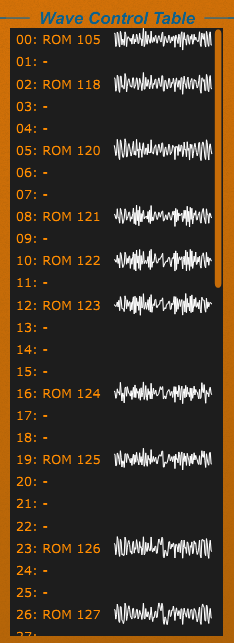
The second column shows the contents of the Control Table that is selected on the left.
If a ROM Control Table is selected, this column is read only. However, if a User Control Table is selected instead, you can edit its contents.
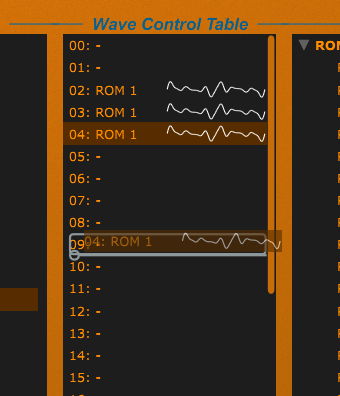
You can rearrange the existing waves via Drag & Drop. This will move a Wave from the current slot to the slot you’re dragging it onto.
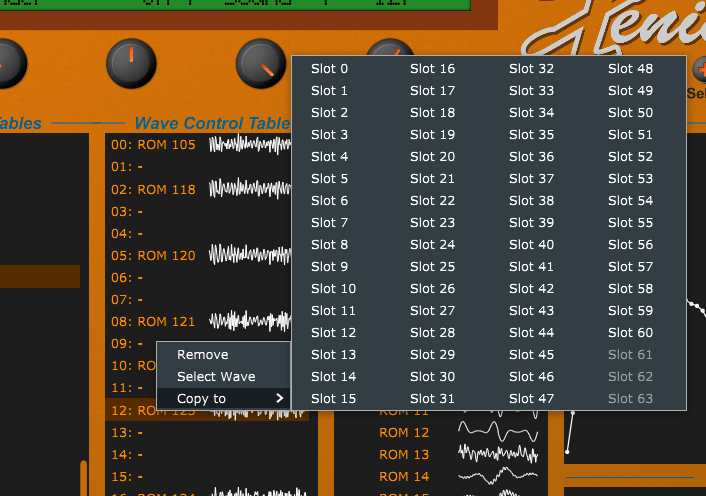
By right clicking on a slot, you have a couple of additional options. You can empty the slot, copy the slot to a second one or select the Wave that is used in that slot.
The Wave list allows you to select the Wave that you want to edit. You can edit ROM Waves as well as User Waves but note that you have to store an edited Wave to a User slot.
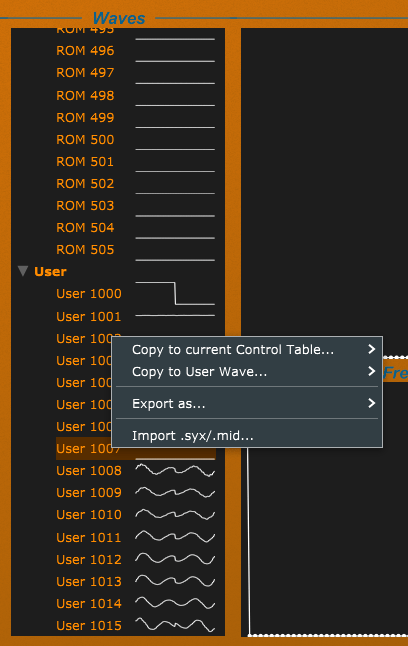
If you right click on a Wave, you open a context menu with additional options. You can copy a Wave to a User slot, copy it to the selected Control Table or import/export the Wave data.
Note that you can copy a Wave also by using Drag & Drop.
The graph section allows you to edit the selected Wave by painting with the mouse. The upper graph displays the wave form in the time domain, i.e. the X axis is the time and the Y axis is the volume.
The left graph is a frequency graph, it allows you to edit the harmonics of that waveform. The graph on the right displays the phase for each harmonic in range -180° to +180°.
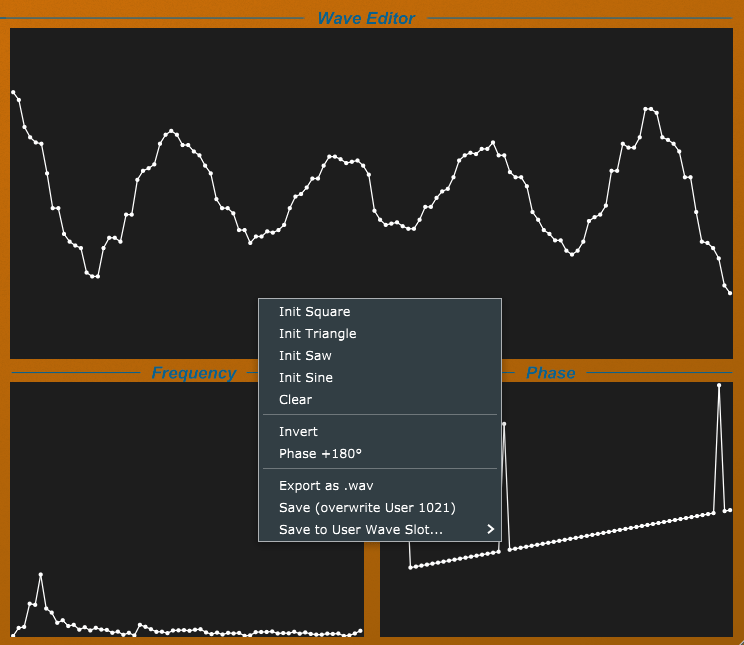
By right clicking you can initialize the Wave with some prebuilt waveforms, clear the content, invert it, export it, and most importantly, save it to a User slot.
Implementation Details
The Microwave II/XT supports 250 User Waves and 32 User Control Tables. This data is global, i.e. every patch that uses custom wave data had to rely on the fact that this custom data is present in the flash storage when a preset is loaded. If the content was altered inbetween, presets might sound different because the custom Waves or Control Tables do not have the expected content.
In Xenia, this basic behaviour cannot be fully prevented, as it emulates the original device, however, to work around this issue, the following approach has been implemented:
-
If you store a preset in your Patch Manager database that uses custom Waves or Control Tables, this custom data is added to the preset and is stored along with it.
-
If you load that preset later, the preset is transmitted and, if applicable, the used Waves and the Control Table as well. Note that this will overwrite existing user waves and control tables with the preset content.
-
If you export a preset with custom Waves or a custom Control Table, it will be exported with hardware compatibility in mind, i.e. the exported file will contain multiple sysex messages. One for the Single preset and additional ones for each used Wave and the used Control Table.
-
If a SysEx or MIDI file is imported and any preset in that file uses custom Waves or Control Tables, the data is converted to the internal representation that stores custom data along with the preset data.
User Waves or User Control Table collision
If you use Xenia in Multi Mode and use multiple presets with custom Waves or a custom Control Table on different parts, you might encounter a collision. This occurs if multiple presets use the same Control Table number, i.e. User 30 or use the same User Wave numbers, i.e. User 1010. This will work as long as both presets expect the same content, but as soon as the content is different, one of the presets might sound incorrect. You can either edit a preset to use a different slot for the user data or use a second instance of the plugin.
Export / Import of data
Xenia can export and import Control Tables as well as Waves. You can export data by right clicking on a Control Table or Wave and select if you want to export it as .syx, .mid or .wav (Waves only). Waves as .wav are exported as 8 bit PCM mono with a length of 128.
As an alternative, you can drag any Control Table or Wave outside the Xenia window to export the data as .mid via Drag & Drop.
You can export all User Waves at once by dragging the root item of the User waves outside the Xenia window, too.
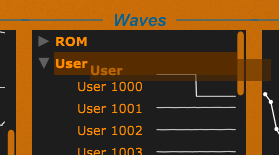
The import of data works in a similar way. You can either right click and select a .syx or .mid file or you can drag .syx or .mid files into the Xenia window on a User Wave or User Control Table slot.
If an imported file contains more than one Wave / Control Table, Xenia will ask you if you want to import everything that is in that file. Note that this will overwrite the existing data.
Further Reading
To get a better understanding of how Xenia wave table synthesis works and how the User Waves and User Control Tables can be used for custom data, we recommend to read the Microwave II/XT User Manual.